
July 28, 2025
Maya Ellis
A quick guide to creating your first clinical note with Claio
If you're new to Claio, getting started is easier than you think. Whether you’re a physician, dentist, or therapist, Claio is designed to help you spend less time on...
- How-To
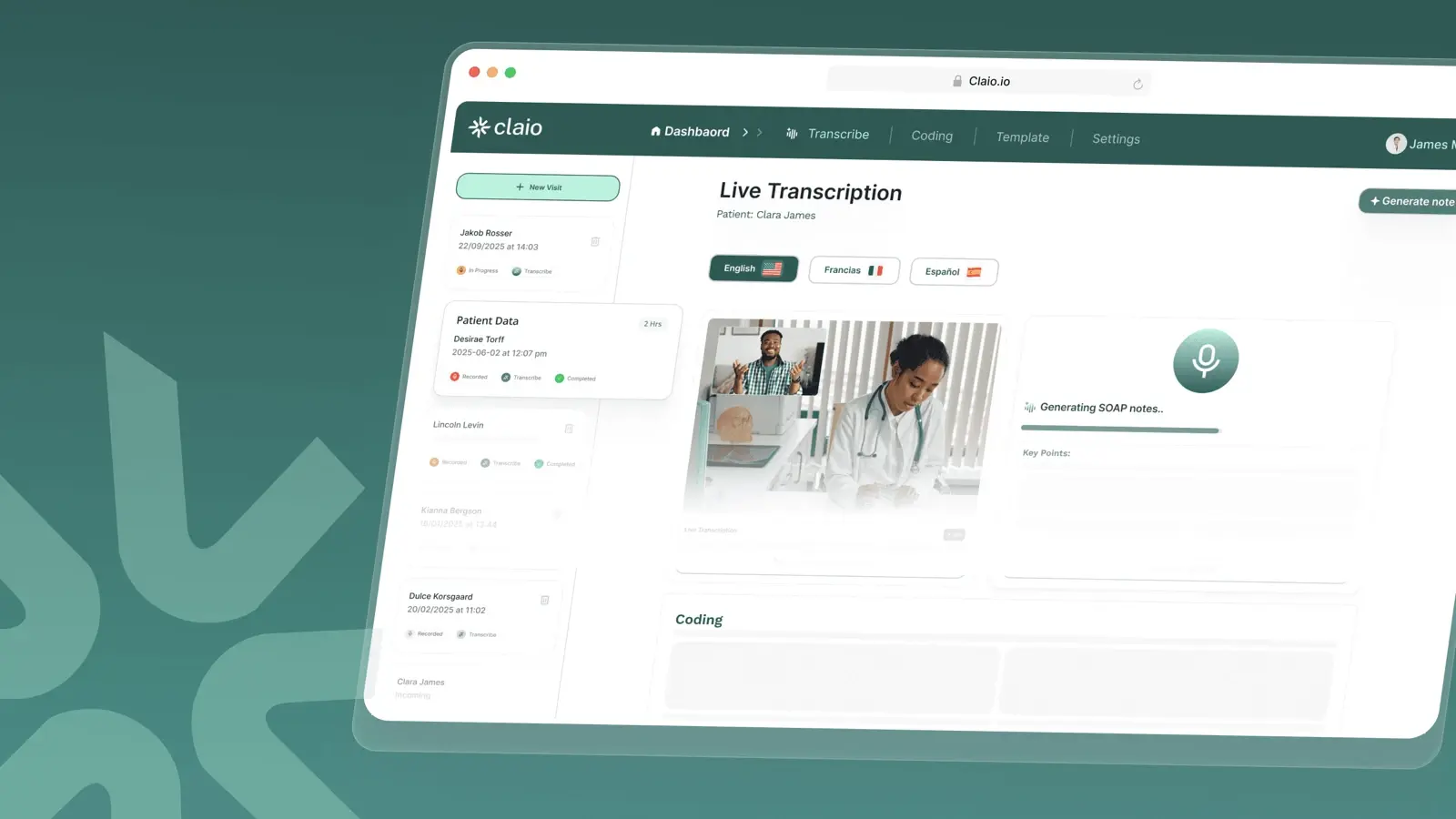
If you're new to Claio, getting started is easier than you think. Whether you’re a physician, dentist, or therapist, Claio is designed to help you spend less time on documentation and more time with your patients.
Here’s a simple step-by-step guide to create your first clinical note using Claio’s AI-powered scribe.
1. Log in and access your dashboard
Once you log in, you'll land on your dashboard. This is where you’ll see your recent patient sessions, usage for the month, and transcription hours remaining. Claio Pro includes 200 transcription hours monthly, and your hours reset automatically every billing cycle.
2. Start a new transcription
Click the “New Transcription” button, enter your patient’s name, and check the box to confirm verbal consent. Then choose your preferred language (English, French, or Spanish) and start recording live or after the visit.
3. Use pause and resume when needed
You can pause the session at any point. Resume when ready, and end the session by pressing the red button.
4. Generate your clinical note
After your recording ends, select the type of note you want to generate:
- SOAP note
- Referral letter
- History & Physical
You can also create custom templates to match your preferred format. Choose the language and note length (standard, verbose, or concise), then hit “Generate Note.”
5. Edit and export to your EHR
You can make quick edits, then copy and paste the note into your EHR in seconds. Just save and you’re done.
6. Add medical codes (optional)
With one click, Claio can also suggest ICD-10 and CPT codes based on your note. Review, edit, or confirm the codes, then generate a clean claim summary to share or save.
With Claio, your notes are faster, easier, and fully in your control. Ready to give it a try?
Get started for Free.
Have questions? Our team is here to help.
Published by the Claio team